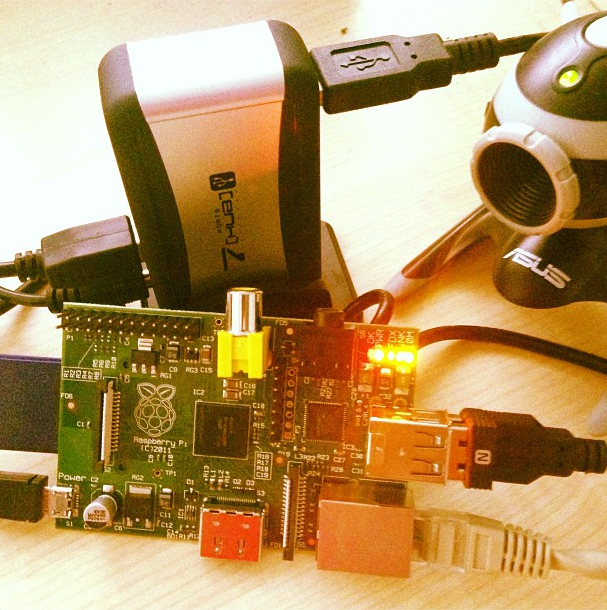
How To: Raspberry PI Web Cam Server
Raspberry PI Web Cam
The Raspberry PI is perfectly equipped to turn your USB based webcam into a fully functional IP webcam that you can have lots of fun with, from there you could use tools such as Python to make your project more unique, I'm having a go at counting passing traffic.
If you're wanting to something a bit more simple you could just have a webcam that can be accessed from anywhere with an internet connection, which is what you will end up with at the end of this guide.
Your shopping list...
- Raspberry Pi with an OS installed
- USB Powered Hub - Amazon UK - Amazon US
- Important; This one worked for me, however, it's not worked for others, you will find this is the case with a lot of the powered USB hubs, research before buying.
- We need a hub because the camera's draw more power than the Raspberry Pi can actually provide, you see the same with some keyboards and USB dongles.
- Web Cam
You could also look at an external power back and WiFi if you want to make it mobile, a few people have put these in a garden or somewhere without a static power/network source.
1. Get the software ready
To start with we're assuming that you have a working Raspberry Pi on a local network with internet access, the next step is to update your Pi ensuring that you have the latest software and drivers installed.
sudo apt-get update
sudo apt-get upgrade
Next, it's time to install the software, and we'll be using a fairly lightweight application called Motion, this will do a few things for us including accessing the USB camera, getting the images, and streaming them via a built-in web server. As the name suggests it will also track and trigger events on motion detected in the video frames (more on that later).
sudo apt-get install motion
2. Plug in your webcam
So now the software is on there it's time to plug in the webcam and ensure that everything is working, ensuring that you plug it into the powered hub, and then into the PI. Otherwise, the webcam will not get enough power to turn on.
When plugged in type the "lsusb" command, you should see a line there with your webcam manufacture, that proves that you have the basic connectivity working.
lsusb
....
Bus 001 Device 002: ID 04ea:1142 Microsoft Corp.
....
3. Configure the software
sudo nano /etc/motion/motion.conf
In here there are a few basic changes that you need to perform:
- Daemon = OFF to ON
- webcam_localhost = ON to OFF
You can change other settings but it's recommended you don't take more than 2 frames, and you keep the default frame pixel size, for stability.
4. Start the software
To ensure that the motion service will actually start as a daemon we need to change another configuration setting, so enter the following:
sudo nano /etc/default/motion
Then change the value "start_motion_daemon=no" to "yes"
Finally, you can start the motion service to stream the webcam images
sudo service motion start
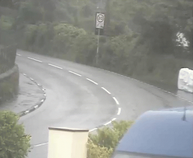
Quick Example Image
Then after about 30 seconds browse to the new web interface, which should be at the below URL (where 192.168.0.100 is your Raspberry PI's IP address)
http://192.168.0.100:8081
5. Final tweaks
Web Port
You could change the web interface port to 80 (from the default 8081), so that you can just browse to the IP address without having to put :8081 at the end, it's really simple to do, just:
sudo nano /etc/motion/motion.conf
And then change "webcam_port 8081" to "webcam_port 80", save the file, and restart the motion service.
sudo service motion restart
Port Forwarding
The final suggestion is to enable port forwarding on your home broadband router to the Raspberry PI on port 80, that will mean you can access the webcam from anywhere in the world. There are too many routers in the word to explain how to do it here, but I am sure you will find some help on Google, if not please just leave a comment.
Warning; If you give it internet access via port forwarding this does take up quite a bit of bandwidth, and anyone can see your webcam feed, so only show what you want people to see ;)